
How to Delete Downloads from a Cellphone
On May 5th, I facilitated a tech lingo workshop at the SHOAL Community Centre in Sidney, BC with almost 50 people in attendance (they even had to grab more chairs to accommodate everyone)! We covered topics like device types, navigation basics, Wi-Fi and so much more.
One slide that sparked a great question was about downloads. Downloads function like a vending machine with never ending stock; when you download an item online (a pdf, a song, a movie etc.), you’re getting a copy of that item. When you’re using a laptop or desktop computer, if you download an item and are worried it may be suspicious, it’s straightforward to delete it from your ‘Downloads’ folder and then empty your trash for good measure.
But what about the device most folks have in their back pocket: their cellphone. A woman asked me this question during my presentation and I didn't know the answer off the top of my head, so I promised that after the presentation that I would look into it and write a blog post with the answer.
So here we are.
How to Delete a File from an iPhone:
Files app: when you delete a file, it goes to a "Recently Deleted" folder and stays there for 30 days before being automatically and permanently removed. If you have iCloud Drive enabled, your files are mirrored between your device and iCloud, meaning deleting a file will remove it from both places once the 30 days is up.
To remove it immediately without waiting 30 days, go to your Recently Deleted folder and delete it from there. This will clear it from both your device and iCloud at the same time.
To check if iCloud Drive is enabled on an iPhone:
Open Settings (the grey gear icon)
Tap your name at the very top
Tap iCloud
Tap iCloud Drive
If the toggle next to iCloud Drive is green, it's enabled. If it's grey, it's off. But the toggle may just look different depending on your operating system version.
To thoroughly remove a download from both your device and iCloud storage without waiting 30 days:
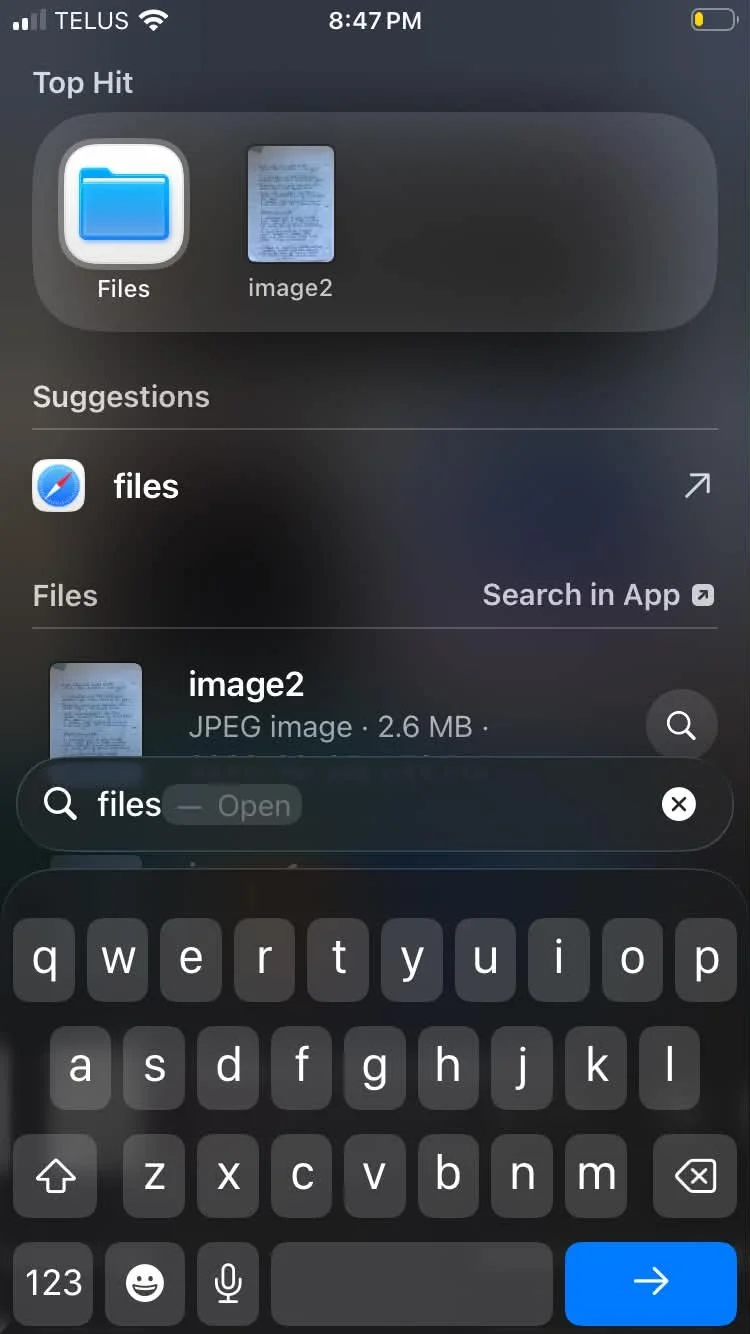
Search 'Files' and tap the blue Files icon.
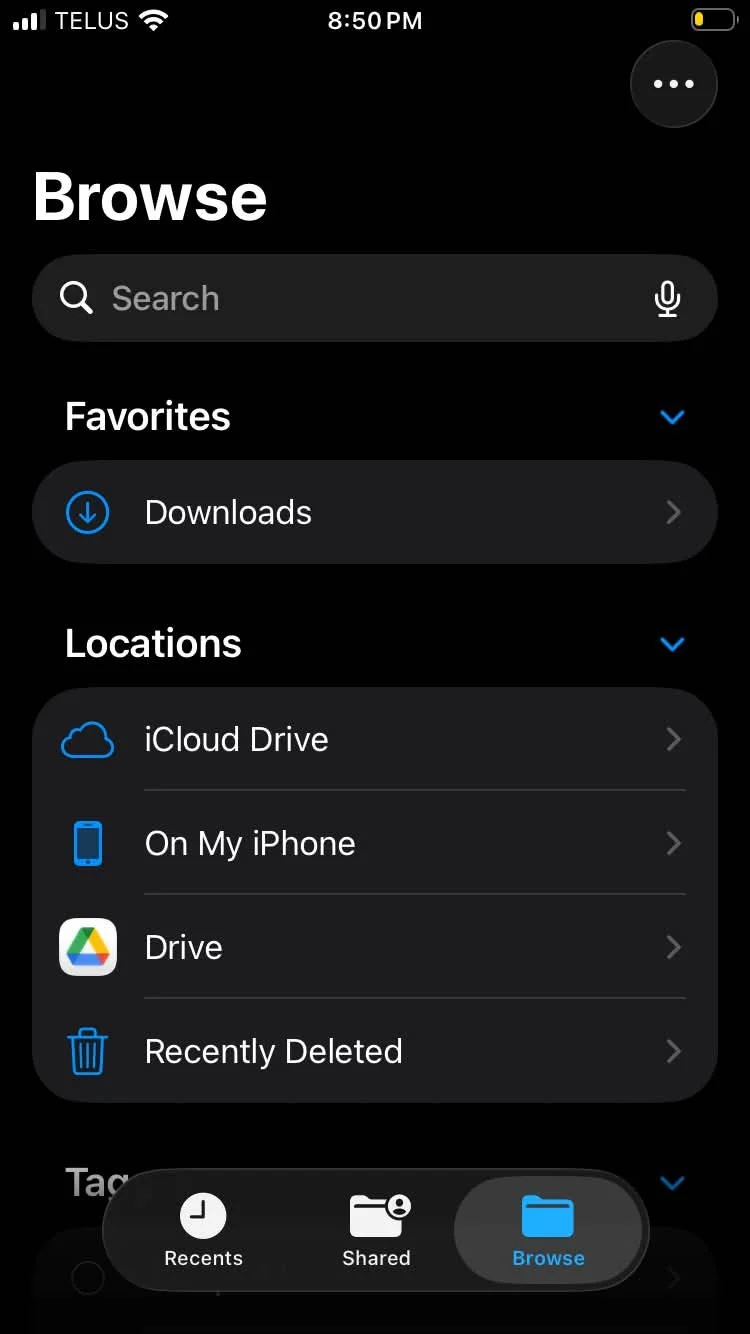
2. It will take you to the ‘Browse’ page where you will tap on ‘Downloads’.
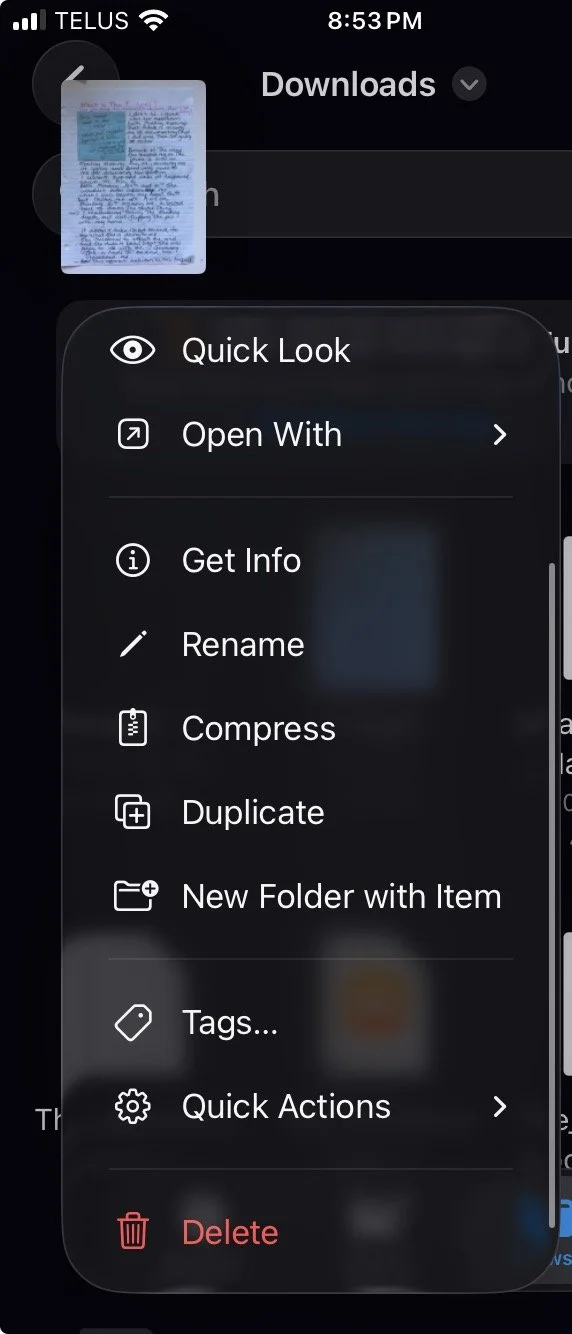
3. Lightly press and hold your finger on the download you want to delete. A dropdown menu will appear, tap Delete at the bottom.
4. Tap the back arrow in the top left corner to return to the Browse page (may have to tap twice).
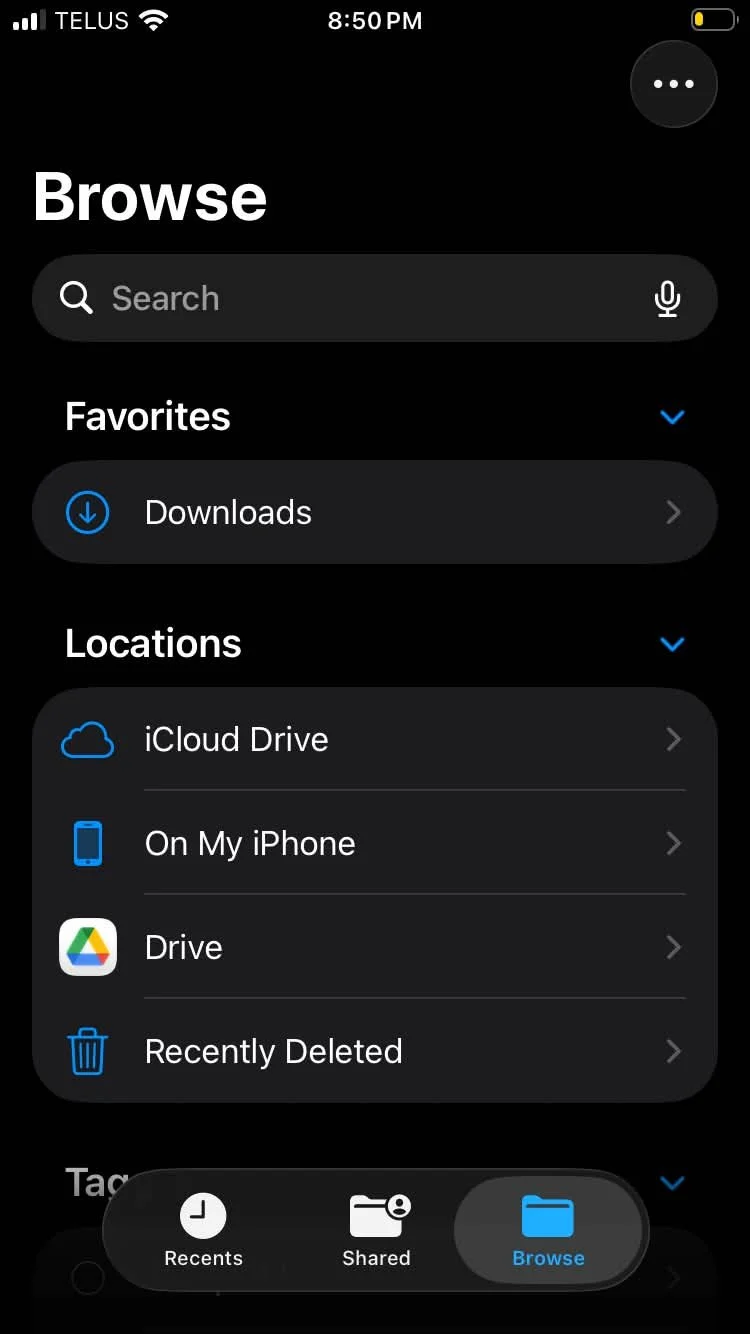
5. On that page, under ‘Locations’ you'll see a ‘Recently Deleted’ folder, tap it.
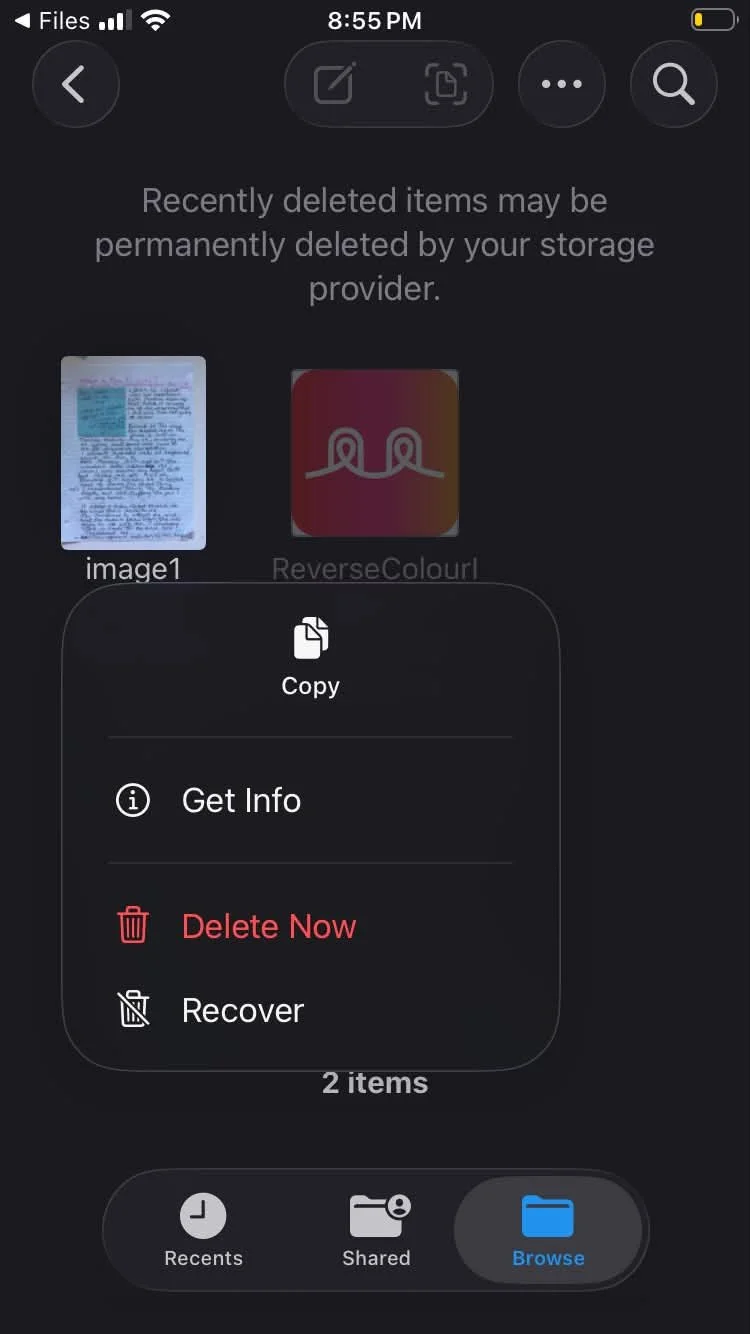
6. The file you just deleted should appear here. Lightly press and hold it and a dropdown menu will appear.
7. Tap the red Delete Now button.
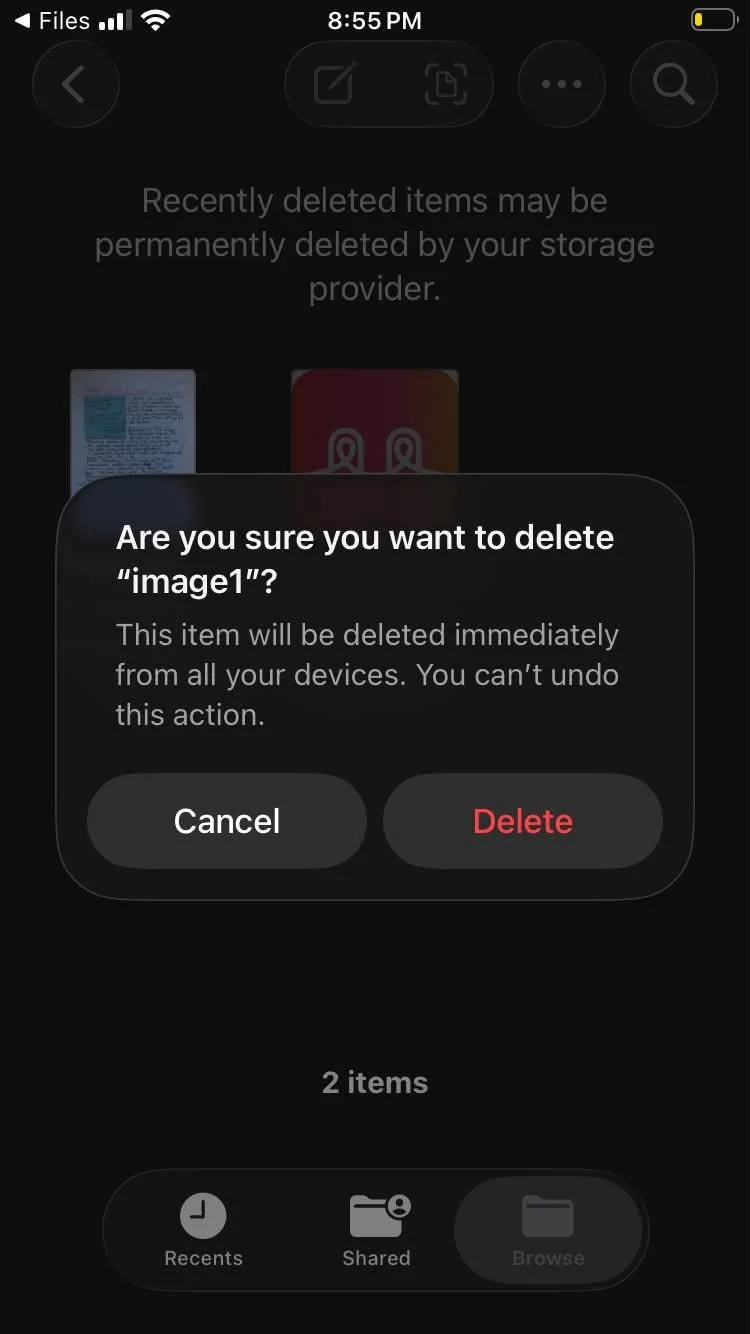
8. A pop-up will appear asking you to confirm, this will immediately delete the file from all your Apple devices and cannot be undone.
9. Tap Delete to complete.
Note: This applies to files stored in the Files app. Photos deleted from the Photos app follow a slightly different path through the Recently Deleted album within the Photos app itself.
How to Delete a File from an Android
Note: Steps may look slightly different depending on your Android device (Samsung, Google Pixel, etc.) but the general flow is the same.
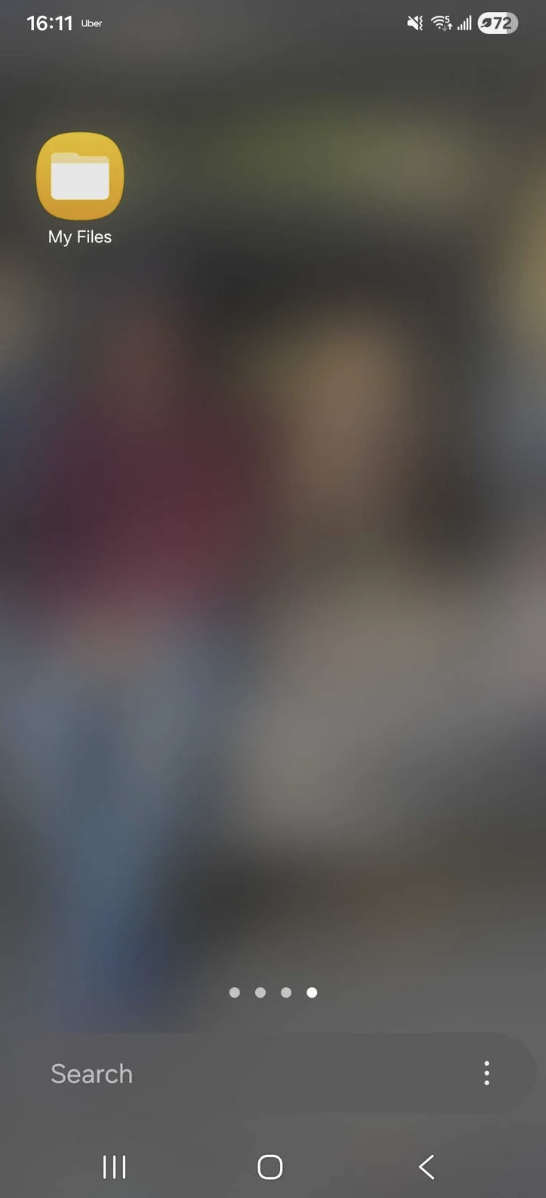
Open the Files app (may also be called My Files on Samsung).
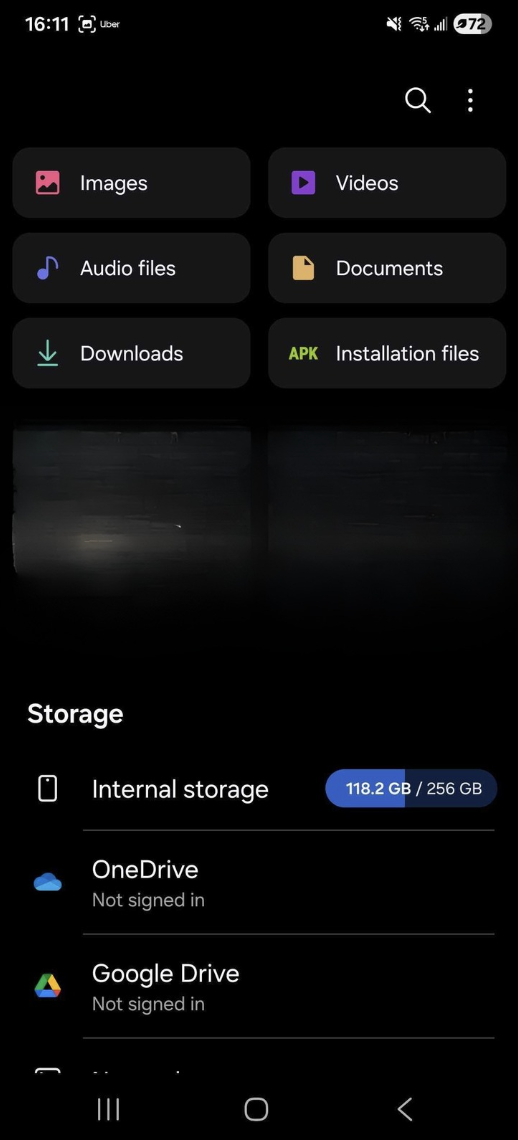
2. Tap Downloads.
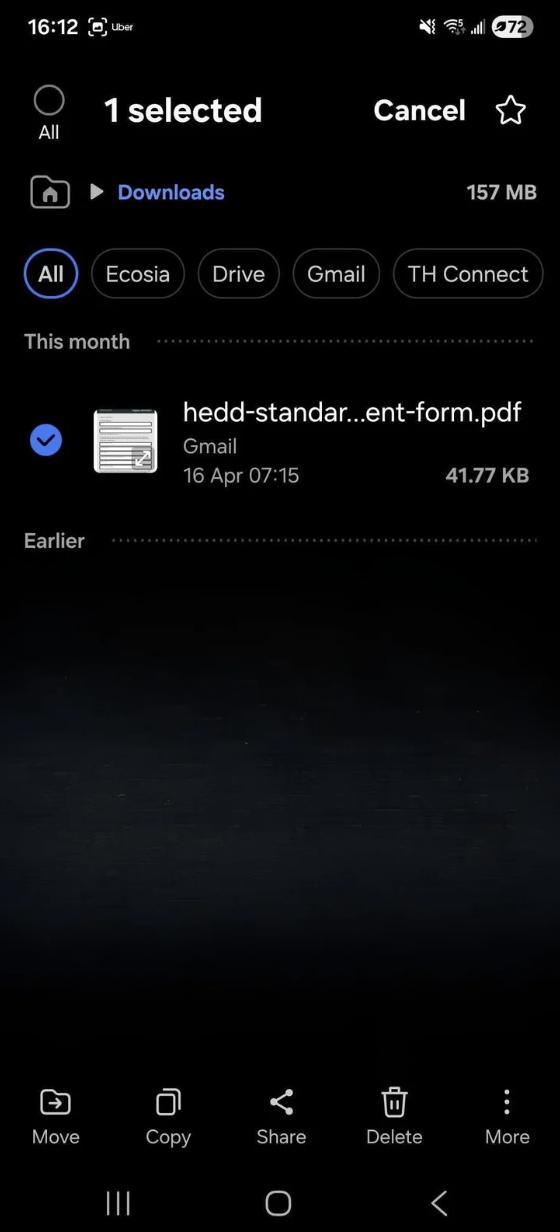
3. Press and hold your finger on any file to activate selection mode, you'll notice small circles appear to the left of all your files. Tap the circle next to the file you want to delete to select it, confirmed by a blue tick appearing in the circle.
4. Tap Delete or the trash icon.
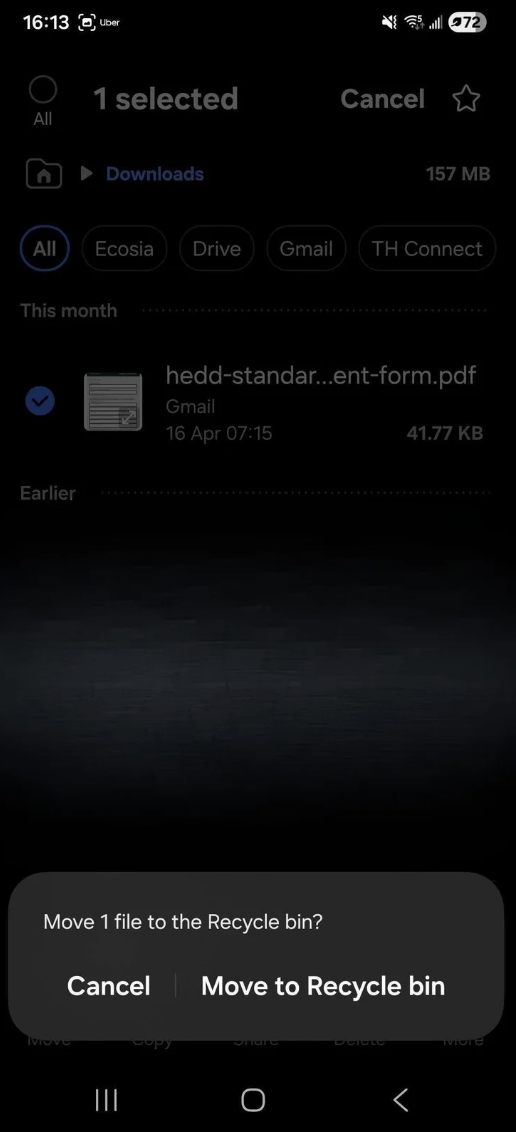
5. A confirmation pop-up may appear, tap Move to Recycle Bin to confirm.
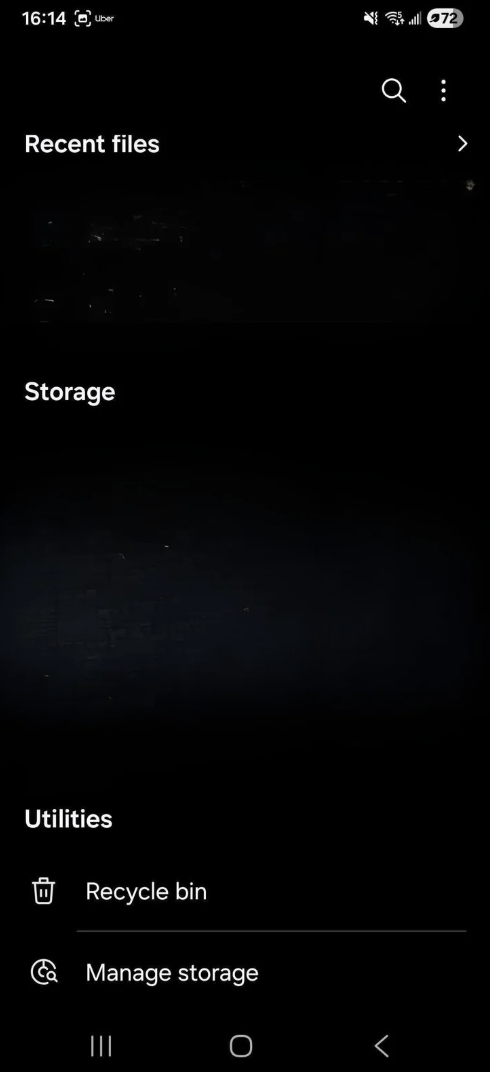
To make sure it's fully gone:
Look for a Trash or Recently Deleted folder within the Files app.
2. If the file appears there, press and hold it to select (like in step 3) and tap Delete or the trash icon.
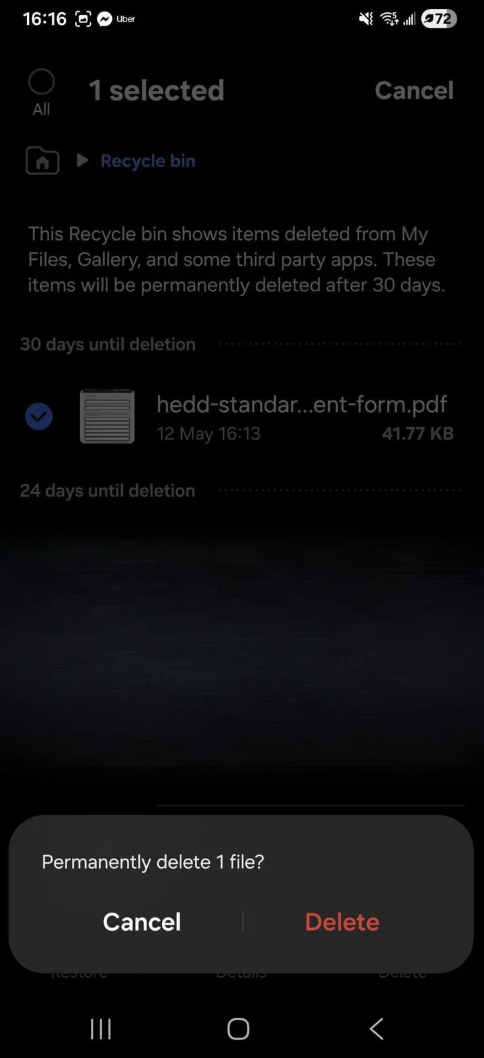
3. A confirmation will appear, asking if you want to “Permanently delete 1 file”. Tap Delete.
Note: Not all Android devices have a Trash folder, and some deletion is immediate and permanent with no recovery period.
Thank you to everyone who attended and for bringing such great questions to the room. This one came straight from the audience and turned into a blog post, so keep them coming! We love hearing from our community and look forward to seeing you again soon.
